

KruigerRestrictions
A standalone FiveM resource that provides configurable ACE-based restrictions for vehicles, weapons, and player ped models.
Kruiger Labs catalog
One live catalog for releases, bots and design work. GitHub and Tebex remain the source of truth, so the site updates without a separate admin dashboard.
Open releases
Public Kruiger Labs projects discovered automatically from GitHub.
A standalone FiveM resource that provides configurable ACE-based restrictions for vehicles, weapons, and player ped models.

A standalone FiveM resource that provides configurable server-wide vehicle speed limits with global, class-based, and ACE permission-based limits up to 250 MPH.
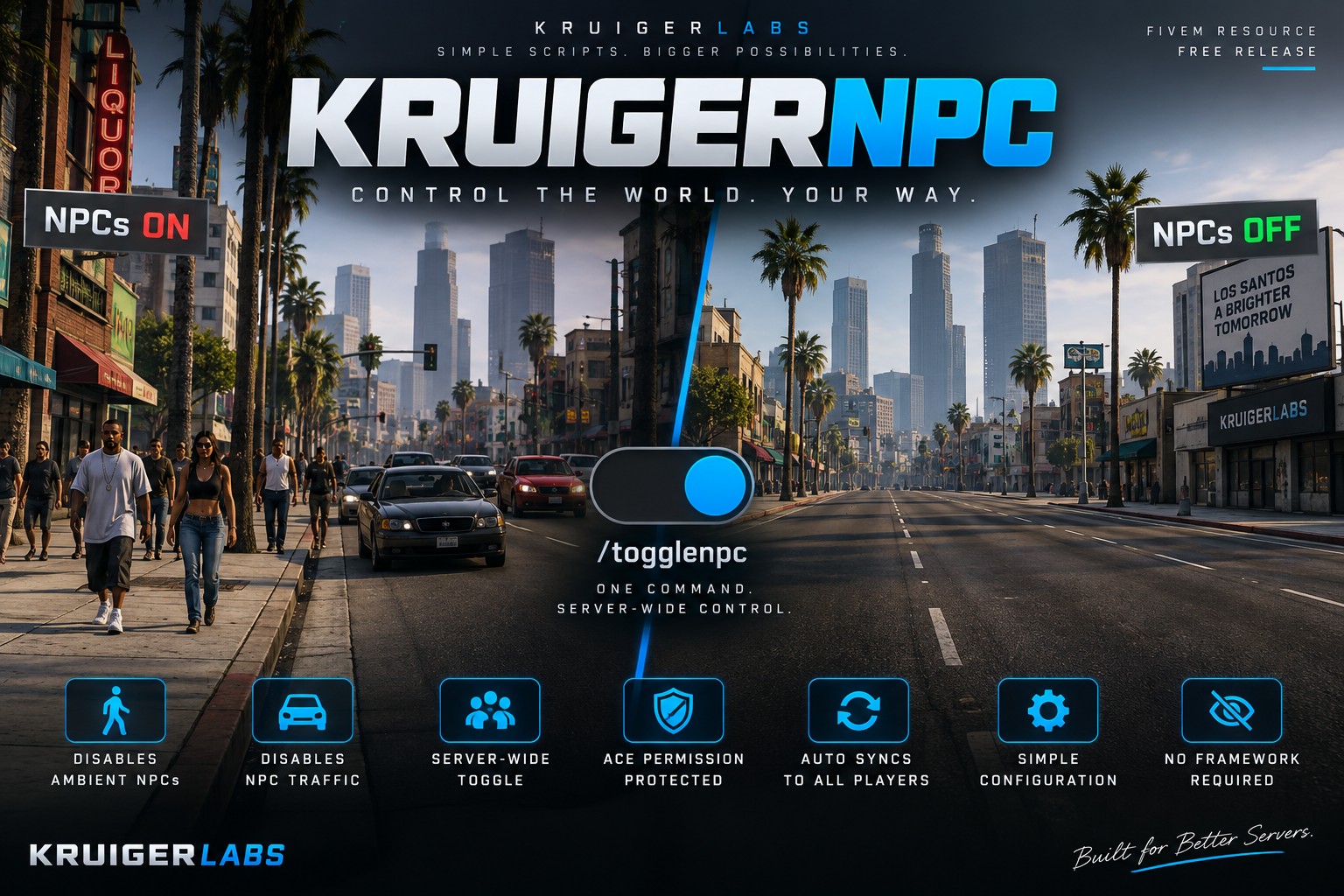
A simple standalone FiveM script that allows authorized staff to enable or disable NPCs and ambient traffic server-wide using /togglenpc.
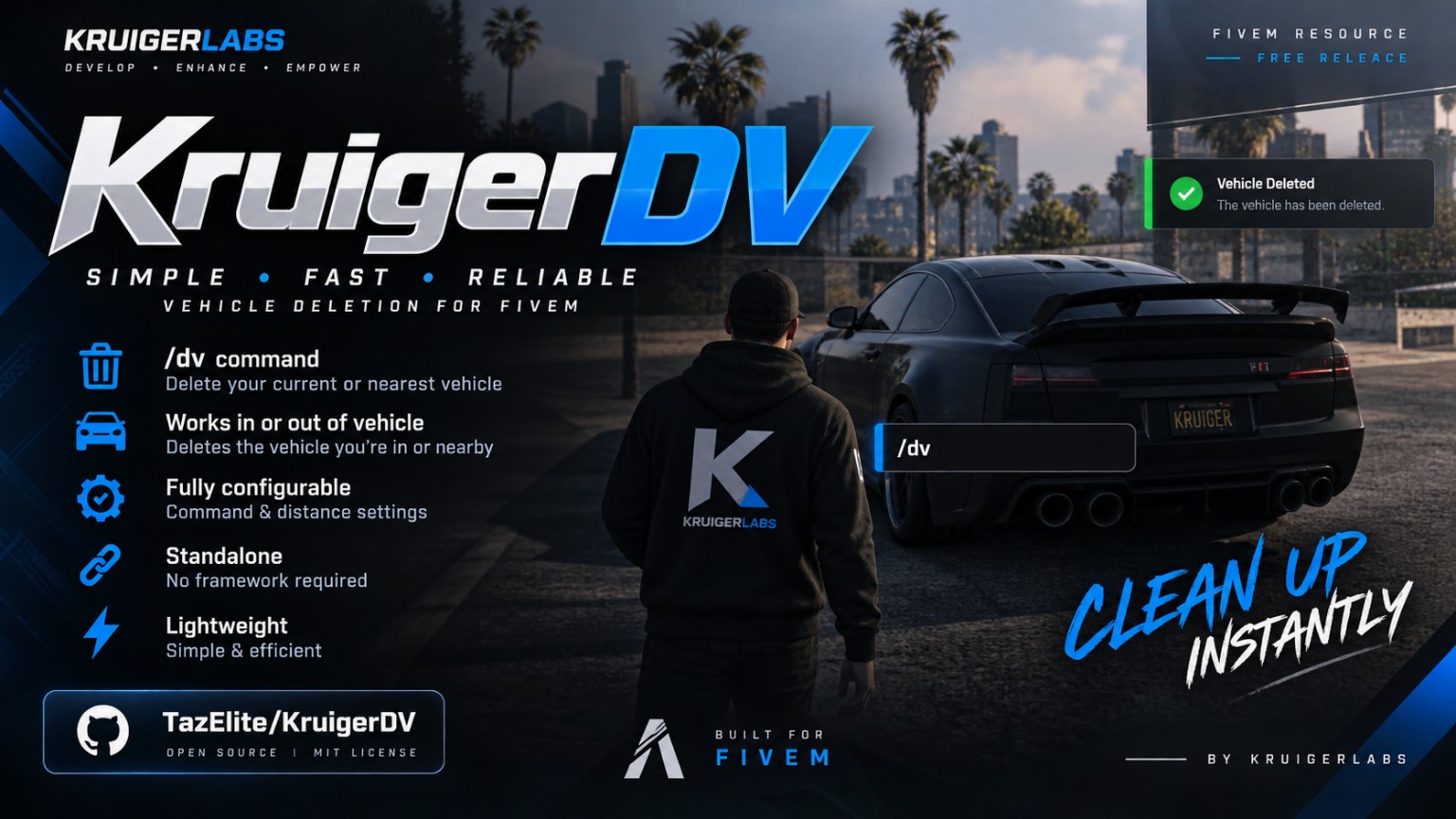
A simple standalone FiveM script that allows players to quickly delete their current or nearby vehicle using /dv.
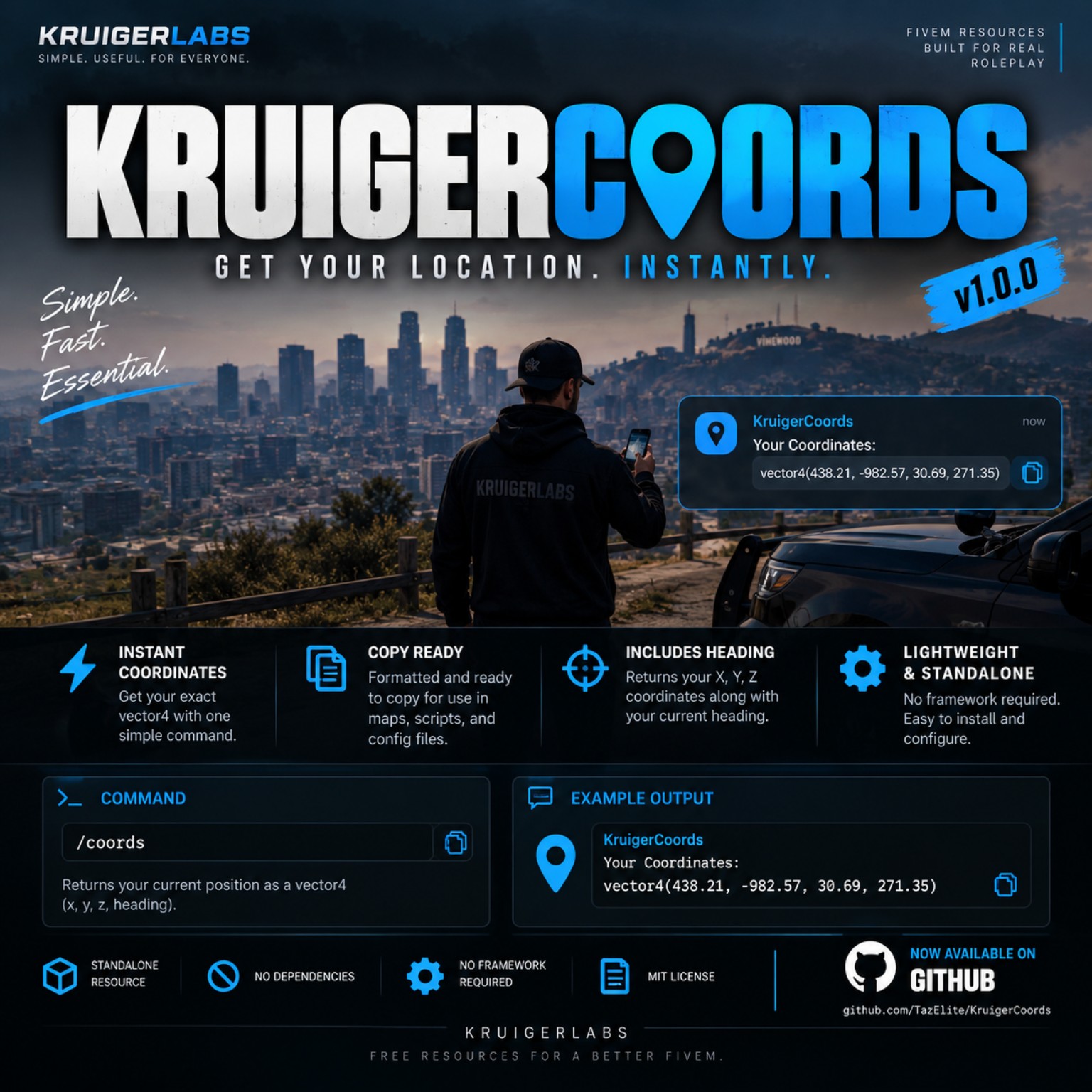
A simple standalone FiveM coordinate script that allows players to quickly copy their current vector4 coordinates and heading to their clipboard using /coords.
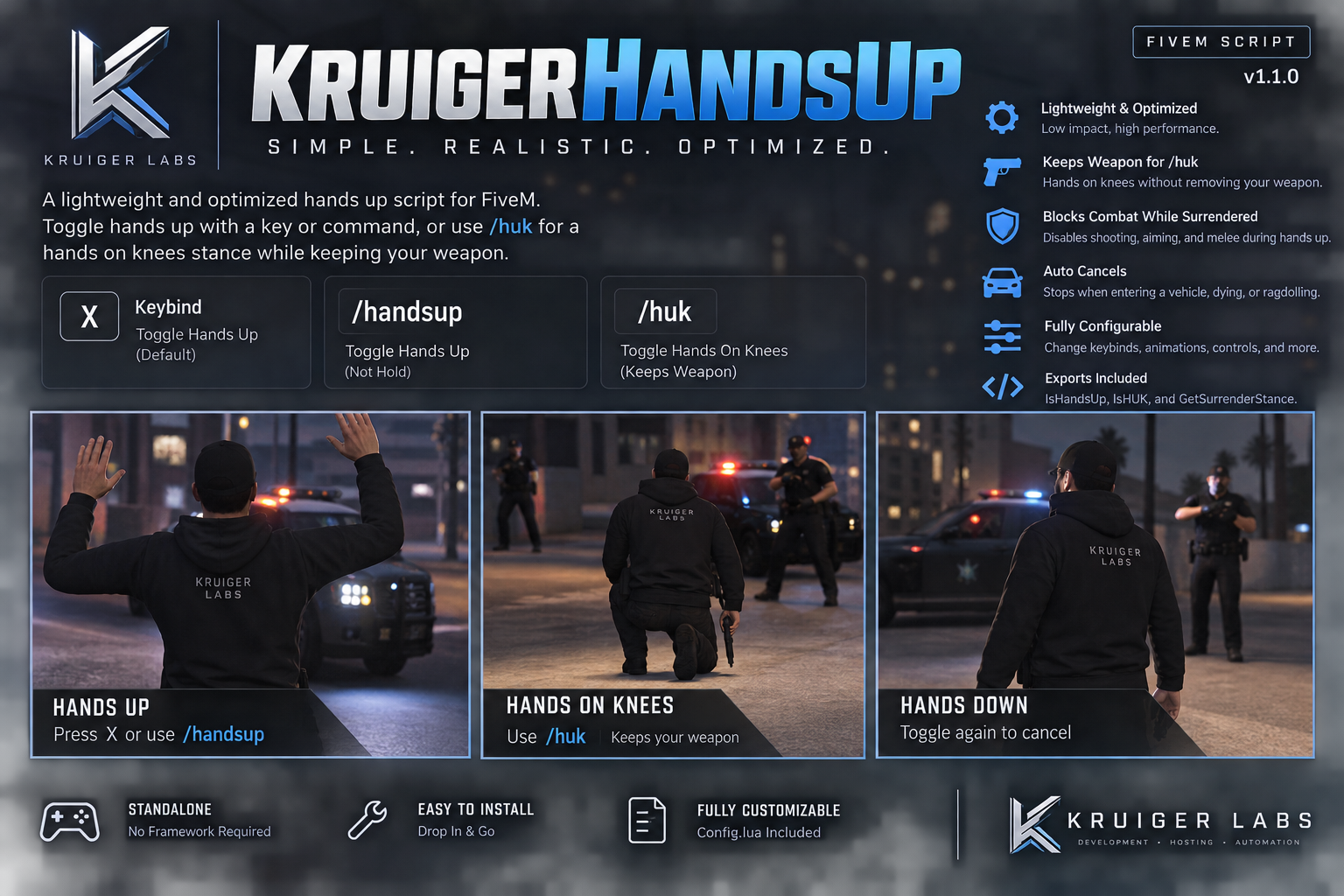
KruigerHandsUp is a lightweight FiveM surrender script featuring toggleable hands up, /huk hands-on-knees, weapon retention, configurable controls, and optimized performance.
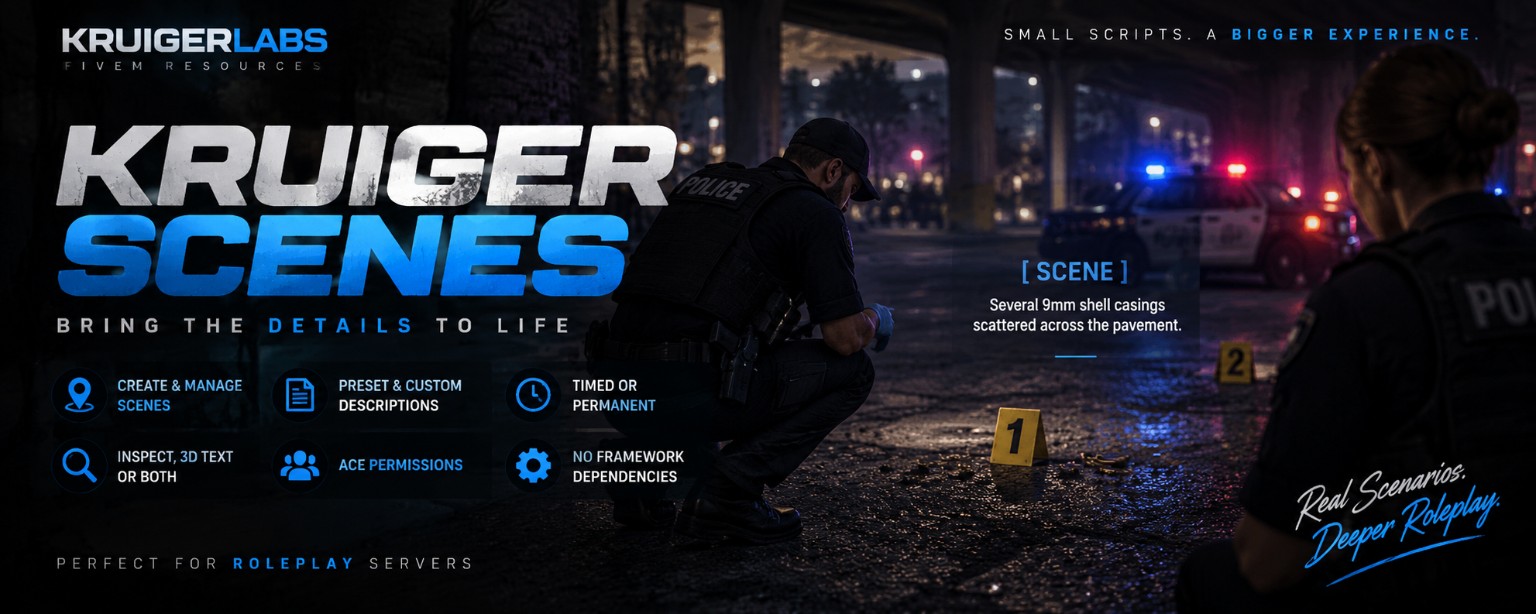
A standalone FiveM RP scene system that allows players to create, place, inspect, and manage synchronized scene descriptions with presets, ACE permissions, timed scenes, and persistent storage.
Premium releases
Paid releases pulled from the official Kruiger Labs Tebex catalog.
![[STANDALONE] KruigerPrority - Monthly preview](https://dunb17ur4ymx4.cloudfront.net/packages/images/578f5ef745d3070d952b7e46d67c917ba64c4441.png)
Kruiger Priority Kruiger Priority is a standalone FiveM roleplay priority management system that allows authorized users to control and display the server's current priority status. How to Use In-Game Use: /priority to open the Priority Management interface. Authorized users can change the current server Priority state. Supported states can include: • Priority Available • Priority Active • Priority On Hold • Priority Cooldown Changes are synchronized so players receive the updated Priority information. Configuring Priority Server owners can configure the Priority system through its customer-editable configuration. This allows you to adapt the system to your server without editing protected core files. Adding/Changing Permissions Priority management uses FiveM ACE permissions under: kruiger.priority.* To authorize additional staff or groups: Open your Priority permission configuration and supplied ACE examples. Determine which Priority permission the user/group requires. Add the appropriate ACE permission to your server.cfg . Assign that permission to the desired FiveM principal/group. Save your configuration. Restart the resource/server. Test /priority using an authorized account. This allows you to give Priority control to groups such as: • Owners • Management • Administrators • Moderators • LEO supervisors • Dispatch • Event coordinators • Custom server groups Regular players do not need Priority-management permission. Discord Logging If enabled in the supplied configuration, supported Priority activity can use your own configured Discord logging. Any webhook used by your server should be your own. Installation Place Kruiger-Priority in your resources folder. Add ensure Kruiger-Priority to server.cfg . Configure Priority. Configure the required ACE permissions. Configure optional logging if desired. Restart the resource/server. Authorized users can use /priority . Standalone Kruiger HUD is not required. Version Kruiger Priority v1.0.0 — Standalone Support https://discord.gg/DbnPHsU9jg Developed by Kruiger Labs LLC
![[STANDALONE] KruigerPriority - Lifetime preview](https://dunb17ur4ymx4.cloudfront.net/packages/images/9c89159f41f1bf6b20a04cc9868b8b6c4f51aa4d.png)
Kruiger Priority Kruiger Priority is a standalone FiveM roleplay priority management system that allows authorized users to control and display the server's current priority status. How to Use In-Game Use: /priority to open the Priority Management interface. Authorized users can change the current server Priority state. Supported states can include: • Priority Available • Priority Active • Priority On Hold • Priority Cooldown Changes are synchronized so players receive the updated Priority information. Configuring Priority Server owners can configure the Priority system through its customer-editable configuration. This allows you to adapt the system to your server without editing protected core files. Adding/Changing Permissions Priority management uses FiveM ACE permissions under: kruiger.priority.* To authorize additional staff or groups: Open your Priority permission configuration and supplied ACE examples. Determine which Priority permission the user/group requires. Add the appropriate ACE permission to your server.cfg . Assign that permission to the desired FiveM principal/group. Save your configuration. Restart the resource/server. Test /priority using an authorized account. This allows you to give Priority control to groups such as: • Owners • Management • Administrators • Moderators • LEO supervisors • Dispatch • Event coordinators • Custom server groups Regular players do not need Priority-management permission. Discord Logging If enabled in the supplied configuration, supported Priority activity can use your own configured Discord logging. Any webhook used by your server should be your own. Installation Place Kruiger-Priority in your resources folder. Add ensure Kruiger-Priority to server.cfg . Configure Priority. Configure the required ACE permissions. Configure optional logging if desired. Restart the resource/server. Authorized users can use /priority . Standalone Kruiger HUD is not required. Version Kruiger Priority v1.0.0 — Standalone Support https://discord.gg/DbnPHsU9jg Developed by Kruiger Labs LLC
![[STANDALONE] KruigerDuty - Monthly preview](https://dunb17ur4ymx4.cloudfront.net/packages/images/29dbf764e579e6048c78c3baeca3815db9ebd616.webp)
Kruiger Duty Kruiger Duty is a standalone FiveM duty-management system designed for law enforcement, Fire/EMS, federal agencies, server staff, and custom organizations. How to Use In-Game Use: /duty to access the Duty system where permitted. Servers can also configure physical Duty locations. When a player approaches a configured Duty point, they can interact using: E to access the Duty interface. Players can then manage their supported On Duty / Off Duty state. Administrative Setup Authorized administrators can use: /dutysetup for the supported Duty setup functionality. Administrative functionality should only be granted to trusted server personnel. Adding More Departments You are not limited to the default departments . Kruiger Duty can be configured around your server's own structure. Examples include: • LSPD • BCSO • SAHP • Fire/EMS • FIB • DHS • IAA • Corrections • Dispatch • Server Staff • Custom organizations Step 1 — Open the Duty Configuration Open the customer-editable Kruiger Duty configuration and locate the configured departments. Step 2 — Create the Department Use an existing department entry as the template for your new department. Give the department a unique identifier and configure its supported information using the same structure. Step 3 — Configure Access Configure the appropriate permissions/access for the department. Only players intended to use the department should receive its required access. Step 4 — Add Duty Locations Configure the locations where members of that department can access Duty. You can create locations at places such as: • Police stations • Sheriff's offices • Highway patrol stations • Fire stations • Hospitals • Federal buildings • Staff areas • Organization headquarters Step 5 — Restart Save your changes and restart Kruiger-Duty . The new department and its configured Duty locations can then be used in-game. Adding Additional Duty Points Departments are not restricted to a single Duty location. For example, a Sheriff's Office could have Duty access at multiple stations. To add another point: Open the customer-editable Duty configuration/data. Locate the existing Duty locations. Use an existing point as a template. Add the new location using the required structure and coordinates. Associate it with the appropriate department where required. Save your changes. Restart Kruiger Duty. Visit the new location and test the E interaction. Headtags Integration Kruiger Duty can optionally work alongside Kruiger Headtags. Headtags are not required for the Standalone edition. Installation Place Kruiger-Duty in your resources folder. Add ensure Kruiger-Duty to server.cfg . Configure departments. Configure department access. Configure Duty locations. Configure administrative permissions. Restart the resource/server. Test /duty , configured Duty points, and /dutysetup with the appropriate accounts. Version Kruiger Duty v1.0.0 — Standalone Support https://discord.gg/DbnPHsU9jg Developed by Kruiger Labs LLC
![[STANDALONE] KruigerDuty - Lifetime preview](https://dunb17ur4ymx4.cloudfront.net/packages/images/c1f35989c0aa692f03893cdbd75d94cb2987784d.webp)
Kruiger Duty Kruiger Duty is a standalone FiveM duty-management system designed for law enforcement, Fire/EMS, federal agencies, server staff, and custom organizations. How to Use In-Game Use: /duty to access the Duty system where permitted. Servers can also configure physical Duty locations. When a player approaches a configured Duty point, they can interact using: E to access the Duty interface. Players can then manage their supported On Duty / Off Duty state. Administrative Setup Authorized administrators can use: /dutysetup for the supported Duty setup functionality. Administrative functionality should only be granted to trusted server personnel. Adding More Departments You are not limited to the default departments . Kruiger Duty can be configured around your server's own structure. Examples include: • LSPD • BCSO • SAHP • Fire/EMS • FIB • DHS • IAA • Corrections • Dispatch • Server Staff • Custom organizations Step 1 — Open the Duty Configuration Open the customer-editable Kruiger Duty configuration and locate the configured departments. Step 2 — Create the Department Use an existing department entry as the template for your new department. Give the department a unique identifier and configure its supported information using the same structure. Step 3 — Configure Access Configure the appropriate permissions/access for the department. Only players intended to use the department should receive its required access. Step 4 — Add Duty Locations Configure the locations where members of that department can access Duty. You can create locations at places such as: • Police stations • Sheriff's offices • Highway patrol stations • Fire stations • Hospitals • Federal buildings • Staff areas • Organization headquarters Step 5 — Restart Save your changes and restart Kruiger-Duty . The new department and its configured Duty locations can then be used in-game. Adding Additional Duty Points Departments are not restricted to a single Duty location. For example, a Sheriff's Office could have Duty access at multiple stations. To add another point: Open the customer-editable Duty configuration/data. Locate the existing Duty locations. Use an existing point as a template. Add the new location using the required structure and coordinates. Associate it with the appropriate department where required. Save your changes. Restart Kruiger Duty. Visit the new location and test the E interaction. Headtags Integration Kruiger Duty can optionally work alongside Kruiger Headtags. Headtags are not required for the Standalone edition. Installation Place Kruiger-Duty in your resources folder. Add ensure Kruiger-Duty to server.cfg . Configure departments. Configure department access. Configure Duty locations. Configure administrative permissions. Restart the resource/server. Test /duty , configured Duty points, and /dutysetup with the appropriate accounts. Version Kruiger Duty v1.0.0 — Standalone Support https://discord.gg/DbnPHsU9jg Developed by Kruiger Labs LLC
![[STANDALONE] KruigerChat - Monthly preview](https://dunb17ur4ymx4.cloudfront.net/packages/images/8ba0aec3882a2796e4bfe92781703c5899900fb7.webp)
Kruiger Chat Kruiger Chat is a standalone FiveM chat replacement featuring roleplay messaging, social communication, advertisements, Chat Tags, player settings, staff functionality, chat management, and optional Discord logging. How to Use In-Game Use your normal FiveM chat control to open Chat. Roleplay Commands /me [message] Describe an action performed by your character. Example: /me reaches into their pocket and removes their ID. /gme [message] Use the supported global ME-style functionality. /do [message] Describe a scene, condition, or roleplay detail. Example: /do The vehicle's front windshield would be shattered. Communication /social Access supported social functionality. /sms Access supported SMS functionality. /ad Use the configured advertisement functionality. Player Settings /chatsettings Open supported player Chat settings. Chat Tags /chattag Access the Chat Tag system. Chat Visibility L Controls the supported Chat visibility/display functionality. Chat History F1 Access supported Chat-history scrolling functionality. Adding Chat Tags Server owners can customize supported Chat Tags rather than being restricted to the included options. Chat Tags can represent: • Owner • Management • Administrator • Moderator • Developer • Police • Fire/EMS • VIP • Supporter • Custom community roles To add a supported custom Chat Tag: Open the customer-editable Kruiger Chat configuration. Locate the existing Chat Tag configuration. Use an existing entry as your template. Create a unique entry for the new tag. Configure its supported display information. Configure any required access/permission according to the supplied configuration. Save your changes. Restart Kruiger-Chat . Test the new tag using /chattag with an authorized player. Configuring Chat Features Server owners can customize supported Chat behavior through the included configuration. This includes configurable functionality for the systems exposed by the resource, including supported commands, Chat Tags, logging, and other customer-facing options. Use the existing configuration values and included examples as the expected structure when adding or changing entries. Staff Functionality Kruiger Chat includes permission-controlled functionality for authorized staff, including supported: • Staff messaging • Chat management • Chat locking • Staff-only functionality Only trusted groups should receive administrative Chat permissions. Discord Logging Discord webhook logging is optional. To configure it: Create your own Discord webhook in the channel where you want supported logs delivered. Open Kruiger Chat's customer-editable configuration. Enable the supported logging option. Enter your own webhook where instructed. Save the configuration. Restart Kruiger Chat. Test the relevant functionality and confirm logs reach your channel. Kruiger Labs does not require your Chat logs to be sent to a Kruiger Labs webhook. Never publicly share your Discord webhook URL. Installation Place Kruiger-Chat inside your resources folder. Disable any conflicting Chat replacement. Add ensure Kruiger-Chat to server.cfg . Configure Chat settings. Configure Chat Tags and permissions. Configure optional Discord logging. Restart the resource/server. Test normal Chat, roleplay commands, Chat Tags, and staff functionality. Standalone Does not require HUD, Priority, Headtags, Duty, ESX, QBCore, or Qbox. No external database is required for normal operation. Version Kruiger Chat v1.0.0 — Standalone Support https://discord.gg/DbnPHsU9jg Developed by Kruiger Labs LLC
![[STANDALONE] KruigerChat - Lifetime preview](https://dunb17ur4ymx4.cloudfront.net/packages/images/50c0638e38ce3575c40cfd157ea3d973e3d291e6.webp)
Kruiger Chat Kruiger Chat is a standalone FiveM chat replacement featuring roleplay messaging, social communication, advertisements, Chat Tags, player settings, staff functionality, chat management, and optional Discord logging. How to Use In-Game Use your normal FiveM chat control to open Chat. Roleplay Commands /me [message] Describe an action performed by your character. Example: /me reaches into their pocket and removes their ID. /gme [message] Use the supported global ME-style functionality. /do [message] Describe a scene, condition, or roleplay detail. Example: /do The vehicle's front windshield would be shattered. Communication /social Access supported social functionality. /sms Access supported SMS functionality. /ad Use the configured advertisement functionality. Player Settings /chatsettings Open supported player Chat settings. Chat Tags /chattag Access the Chat Tag system. Chat Visibility L Controls the supported Chat visibility/display functionality. Chat History F1 Access supported Chat-history scrolling functionality. Adding Chat Tags Server owners can customize supported Chat Tags rather than being restricted to the included options. Chat Tags can represent: • Owner • Management • Administrator • Moderator • Developer • Police • Fire/EMS • VIP • Supporter • Custom community roles To add a supported custom Chat Tag: Open the customer-editable Kruiger Chat configuration. Locate the existing Chat Tag configuration. Use an existing entry as your template. Create a unique entry for the new tag. Configure its supported display information. Configure any required access/permission according to the supplied configuration. Save your changes. Restart Kruiger-Chat . Test the new tag using /chattag with an authorized player. Configuring Chat Features Server owners can customize supported Chat behavior through the included configuration. This includes configurable functionality for the systems exposed by the resource, including supported commands, Chat Tags, logging, and other customer-facing options. Use the existing configuration values and included examples as the expected structure when adding or changing entries. Staff Functionality Kruiger Chat includes permission-controlled functionality for authorized staff, including supported: • Staff messaging • Chat management • Chat locking • Staff-only functionality Only trusted groups should receive administrative Chat permissions. Discord Logging Discord webhook logging is optional. To configure it: Create your own Discord webhook in the channel where you want supported logs delivered. Open Kruiger Chat's customer-editable configuration. Enable the supported logging option. Enter your own webhook where instructed. Save the configuration. Restart Kruiger Chat. Test the relevant functionality and confirm logs reach your channel. Kruiger Labs does not require your Chat logs to be sent to a Kruiger Labs webhook. Never publicly share your Discord webhook URL. Installation Place Kruiger-Chat inside your resources folder. Disable any conflicting Chat replacement. Add ensure Kruiger-Chat to server.cfg . Configure Chat settings. Configure Chat Tags and permissions. Configure optional Discord logging. Restart the resource/server. Test normal Chat, roleplay commands, Chat Tags, and staff functionality. Standalone Does not require HUD, Priority, Headtags, Duty, ESX, QBCore, or Qbox. No external database is required for normal operation. Version Kruiger Chat v1.0.0 — Standalone Support https://discord.gg/DbnPHsU9jg Developed by Kruiger Labs LLC
![[STANDALONE] KruigerHud - Monthly preview](https://dunb17ur4ymx4.cloudfront.net/packages/images/90887f5c578cf9deda51f23422a3010eb202a4c2.png)
Kruiger HUD Kruiger HUD is a modern standalone FiveM heads-up display featuring player information, vehicle data, navigation tools, speed limits, seatbelt functionality, postal navigation, and customizable HUD settings. This edition is completely standalone and does not require any other Kruiger resource. How to Use In-Game The HUD automatically loads when a player joins the server. HUD Settings Use: /hud to open the HUD settings interface. Players can customize supported HUD display preferences directly in-game. Postal Navigation Use: /postal [postal code] Example: /postal 301 The system locates the configured postal and provides navigation toward that location. Recommended Postal Map For visible map postals that align with Kruiger HUD's postal system, use the Big Daddy Scripts Postal Map: https://bigdaddyscripts.com/Products/View/2963/Postal-Map Using a different postal map or postal dataset may cause the numbers displayed on the map to differ from the locations used by /postal . The Postal Map is a third-party resource and is not developed, owned, or distributed by Kruiger Labs LLC. Speed Limit Use: /togglespeed to toggle the supported speed-limit display. Vehicle HUD The vehicle HUD activates automatically when entering a supported vehicle. Supported information includes vehicle speed, speed-limit information, navigation information, vehicle indicators, and seatbelt status. Leaving the vehicle automatically returns the HUD to its normal state. Configuring the HUD Server owners can customize supported HUD functionality through the customer-editable configuration supplied with the resource. To change a setting: Open the Kruiger HUD configuration. Locate the setting you want to change. Follow the structure and comments supplied with the configuration. Save the file. Restart Kruiger-Hud . The protected core does not need to be modified for normal configuration. Installation Place Kruiger-Hud inside your FiveM resources folder. Add ensure Kruiger-Hud to server.cfg . Configure the customer-editable settings. Install the recommended postal map if matching visible postals are desired. Restart the resource/server. Join the server. The HUD loads automatically. Standalone Does not require Kruiger Priority, Headtags, Duty, Chat, ESX, QBCore, or Qbox. Version Kruiger HUD v1.0.0 — Standalone Support https://discord.gg/DbnPHsU9jg Developed by Kruiger Labs LLC
![[STANDALONE] KruigerHud - Lifetime preview](https://dunb17ur4ymx4.cloudfront.net/packages/images/9eeffdb5e3bbff732ea81ccdee8802488cb6ad3f.png)
Kruiger HUD Kruiger HUD is a modern standalone FiveM heads-up display featuring player information, vehicle data, navigation tools, speed limits, seatbelt functionality, postal navigation, and customizable HUD settings. This edition is completely standalone and does not require any other Kruiger resource. How to Use In-Game The HUD automatically loads when a player joins the server. HUD Settings Use: /hud to open the HUD settings interface. Players can customize supported HUD display preferences directly in-game. Postal Navigation Use: /postal [postal code] Example: /postal 301 The system locates the configured postal and provides navigation toward that location. Recommended Postal Map For visible map postals that align with Kruiger HUD's postal system, use the Big Daddy Scripts Postal Map: https://bigdaddyscripts.com/Products/View/2963/Postal-Map Using a different postal map or postal dataset may cause the numbers displayed on the map to differ from the locations used by /postal . The Postal Map is a third-party resource and is not developed, owned, or distributed by Kruiger Labs LLC. Speed Limit Use: /togglespeed to toggle the supported speed-limit display. Vehicle HUD The vehicle HUD activates automatically when entering a supported vehicle. Supported information includes vehicle speed, speed-limit information, navigation information, vehicle indicators, and seatbelt status. Leaving the vehicle automatically returns the HUD to its normal state. Configuring the HUD Server owners can customize supported HUD functionality through the customer-editable configuration supplied with the resource. To change a setting: Open the Kruiger HUD configuration. Locate the setting you want to change. Follow the structure and comments supplied with the configuration. Save the file. Restart Kruiger-Hud . The protected core does not need to be modified for normal configuration. Installation Place Kruiger-Hud inside your FiveM resources folder. Add ensure Kruiger-Hud to server.cfg . Configure the customer-editable settings. Install the recommended postal map if matching visible postals are desired. Restart the resource/server. Join the server. The HUD loads automatically. Standalone Does not require Kruiger Priority, Headtags, Duty, Chat, ESX, QBCore, or Qbox. Version Kruiger HUD v1.0.0 — Standalone Support https://discord.gg/DbnPHsU9jg Developed by Kruiger Labs LLC
![[STANDALONE] KruigerHeadtags - Monthly preview](https://dunb17ur4ymx4.cloudfront.net/packages/images/647719968f88714da4ddef77d7283984ef9531e5.png)
Kruiger Headtags Kruiger Headtags is a standalone FiveM player-identification system featuring configurable overhead Headtags, Gang/Department tags, ACE permissions, and player-controlled display settings. How to Use In-Game Use: /headtag or: /headtags to access the Headtag system. Use: /gangtag to access Gang/Department tags. /gantag is also supported as an alternate command. Use: /headtagsettings to open the standalone Headtag settings interface. Use: /showheadtagself for supported self-Headtag display functionality. Adding New Headtags You are not limited to the included Headtags . Server owners can create additional tags through the customer-editable Headtags configuration. Step 1 — Open the Configuration Open the supplied Kruiger Headtags configuration. Locate the existing Headtag definitions. Step 2 — Use an Existing Tag as a Template Copy the structure of an existing tag and create a new entry. You can create tags for: • Owner • Management • Developer • Administrator • Moderator • Police • Sheriff • State Police • Fire/EMS • Federal agencies • Dispatch • VIP groups • Custom server roles Give each configured tag a unique identifier. Step 3 — Configure Permissions Headtag permissions use: headtag.kruiger.* Create/grant the appropriate ACE permission for the tag according to the included configuration and ACE examples. Step 4 — Grant Access Assign the corresponding ACE permission to the FiveM principal/group that should receive the tag. Players without the required permission cannot use restricted tags. Step 5 — Restart Save your changes and restart Kruiger-Headtags . Authorized players can then access the newly configured tag through /headtag or /headtags . Adding Gang / Department Tags Gangtags are also customizable. These do not have to represent literal gangs. They can be used for departments, subdivisions, organizations, teams, agencies, or other groups. To add one: Open the Gang/Department tag section of the configuration. Copy an existing entry as your template. Give the new entry a unique identifier. Configure its supported display information. Configure its permission. Grant the permission to the appropriate group. Save the configuration. Restart the resource. Authorized players can access it through /gangtag . Gang/Department permissions use: gangtag.kruiger.* Example Uses A law-enforcement server could configure Department tags for: • LSPD • BCSO • SAHP • FIB • DHS • Dispatch while keeping staff Headtags completely separate. Optional Duty Integration Kruiger Headtags can optionally work alongside Kruiger Duty. Kruiger Duty is not required for the Standalone edition. Installation Place Kruiger-Headtags in your resources folder. Add ensure Kruiger-Headtags to server.cfg . Configure your Headtags. Configure Gang/Department tags. Configure ACE permissions. Restart the resource/server. Use /headtagsettings to configure player display preferences. Version Kruiger Headtags v1.0.0 — Standalone Support https://discord.gg/DbnPHsU9jg Developed by Kruiger Labs LLC
![[STANDALONE] KruigerHeadtags - Lifetime preview](https://dunb17ur4ymx4.cloudfront.net/packages/images/5704c2eadf2010424600c566717df80bbb848b07.png)
Kruiger Headtags Kruiger Headtags is a standalone FiveM player-identification system featuring configurable overhead Headtags, Gang/Department tags, ACE permissions, and player-controlled display settings. How to Use In-Game Use: /headtag or: /headtags to access the Headtag system. Use: /gangtag to access Gang/Department tags. /gantag is also supported as an alternate command. Use: /headtagsettings to open the standalone Headtag settings interface. Use: /showheadtagself for supported self-Headtag display functionality. Adding New Headtags You are not limited to the included Headtags . Server owners can create additional tags through the customer-editable Headtags configuration. Step 1 — Open the Configuration Open the supplied Kruiger Headtags configuration. Locate the existing Headtag definitions. Step 2 — Use an Existing Tag as a Template Copy the structure of an existing tag and create a new entry. You can create tags for: • Owner • Management • Developer • Administrator • Moderator • Police • Sheriff • State Police • Fire/EMS • Federal agencies • Dispatch • VIP groups • Custom server roles Give each configured tag a unique identifier. Step 3 — Configure Permissions Headtag permissions use: headtag.kruiger.* Create/grant the appropriate ACE permission for the tag according to the included configuration and ACE examples. Step 4 — Grant Access Assign the corresponding ACE permission to the FiveM principal/group that should receive the tag. Players without the required permission cannot use restricted tags. Step 5 — Restart Save your changes and restart Kruiger-Headtags . Authorized players can then access the newly configured tag through /headtag or /headtags . Adding Gang / Department Tags Gangtags are also customizable. These do not have to represent literal gangs. They can be used for departments, subdivisions, organizations, teams, agencies, or other groups. To add one: Open the Gang/Department tag section of the configuration. Copy an existing entry as your template. Give the new entry a unique identifier. Configure its supported display information. Configure its permission. Grant the permission to the appropriate group. Save the configuration. Restart the resource. Authorized players can access it through /gangtag . Gang/Department permissions use: gangtag.kruiger.* Example Uses A law-enforcement server could configure Department tags for: • LSPD • BCSO • SAHP • FIB • DHS • Dispatch while keeping staff Headtags completely separate. Optional Duty Integration Kruiger Headtags can optionally work alongside Kruiger Duty. Kruiger Duty is not required for the Standalone edition. Installation Place Kruiger-Headtags in your resources folder. Add ensure Kruiger-Headtags to server.cfg . Configure your Headtags. Configure Gang/Department tags. Configure ACE permissions. Restart the resource/server. Use /headtagsettings to configure player display preferences. Version Kruiger Headtags v1.0.0 — Standalone Support https://discord.gg/DbnPHsU9jg Developed by Kruiger Labs LLC
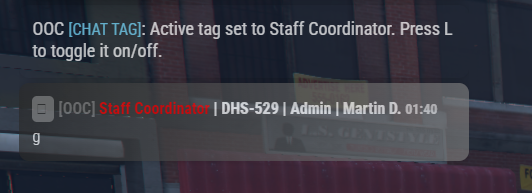
Kruiger HUD Combined Kruiger HUD Combined is the complete Kruiger Labs FiveM server package, combining all five Kruiger systems into one integrated purchase. Instead of purchasing each resource separately, Combined gives your community the complete ecosystem with the systems configured to work alongside each other. Everything Included Your purchase includes: • Kruiger HUD • Kruiger Headtags • Kruiger Priority • Kruiger Duty • Kruiger Chat • Integrated Headtag/Gangtag HUD display • Integrated Headtag settings • Department and organization support • Configurable duty locations • ACE-controlled permissions • Priority management • Postal navigation • Vehicle HUD • Seatbelt functionality • Custom FiveM chat • Roleplay chat commands • Staff chat functionality • Chat tags and settings • Optional Discord logging • Customer-editable configuration • Cfx Asset Escrow protection You do not need to purchase any of the Kruiger Standalone packages when purchasing Kruiger HUD Combined. Kruiger HUD Kruiger HUD provides the primary player, vehicle, and navigation interface. The HUD loads automatically when a player joins the server. HUD Settings Use: /hud to open the HUD settings. Players can configure supported display preferences directly in-game. Vehicle HUD When a player enters a supported vehicle, the vehicle HUD automatically activates. Supported information includes features such as: • Vehicle speed • Speed information • Speed limits • Navigation information • Vehicle indicators • Seatbelt status Leaving the vehicle automatically returns the HUD to its normal state. Speed Limit Display Use: /togglespeed to toggle the supported speed-limit display. Seatbelt The Combined package includes Kruiger HUD's vehicle seatbelt functionality. Seatbelt information is integrated with the vehicle HUD. Postal Navigation Use: /postal [postal code] Example: /postal 301 The system locates the configured postal and provides navigation to that location. Recommended Postal Map For the postal numbers displayed on your map to align with Kruiger HUD's postal system, use: Big Daddy Scripts Postal Map https://bigdaddyscripts.com/Products/View/2963/Postal-Map Using another postal map or dataset may result in the displayed postal numbers not corresponding with /postal . The Postal Map is a third-party resource and is not developed, distributed, or owned by Kruiger Labs LLC. Kruiger Headtags Kruiger Headtags provides configurable overhead player identification. It can be used for: • Staff • Police • Sheriff's Offices • State Police • Fire/EMS • Federal Agencies • Departments • Subdivisions • Gangs • Organizations • VIP groups • Developers • Management • Custom server roles Using Headtags Use: /headtag or: /headtags to access the Headtag system. Players only receive access to restricted Headtags they have permission to use. Gang / Department Tags Use: /gangtag to access available Gangtags or Department tags. The system also supports: /gantag as an alternate command. Headtag Settings Use: /headtagsettings to access the integrated Headtag settings. Players can configure supported Headtag display preferences from this interface. Self Headtag Use: /showheadtagself for the supported self-Headtag display functionality. Adding Your Own Headtags Server owners are not limited to the included Headtags . Additional Headtags can be created through the customer-editable Headtags configuration. Step 1 — Open the Headtags Configuration Open the customer-editable configuration included with Kruiger Headtags. Existing Headtag entries can be used as templates. Step 2 — Create the Headtag Copy an existing Headtag entry and modify it for your new role. For example, you could create: Owner Administrator Moderator LSPD BCSO SAHP Fire/EMS FIB VIP or any other role used by your community. Each configured tag should have its own unique identifier. Step 3 — Configure Permissions Headtags use FiveM ACE permissions. Headtag permissions use: headtag.kruiger.* Gang/Department tags use: gangtag.kruiger.* Grant the corresponding permission to the appropriate FiveM principal/group. This means simply creating a restricted tag does not automatically give everyone access to it. Step 4 — Restart Save your configuration and restart Kruiger Headtags or restart the server. Authorized players can then access the new Headtag through /headtag or /headtags . Adding Gang / Department Tags Additional Gangtags and Department tags can also be added. Server owners can: Open the Headtags configuration. Locate the Gangtag/Department tag configuration. Use an existing entry as a template. Create a unique entry for the new department or organization. Configure its display information. Assign its gangtag.kruiger.* ACE permission. Grant that permission to the correct group. Restart the resource. The newly configured tag can then be accessed by authorized players through: /gangtag Headtag + HUD Integration Headtags integrate directly with Kruiger HUD in the Combined package. The player's supported Headtag/Gangtag status can be communicated to the HUD and displayed through its Tag Status interface. Supported presentation options include settings such as: • Position • Scale • Opacity • Background • Border This creates a unified experience rather than operating the HUD and Headtags as unrelated scripts. Kruiger Duty Kruiger Duty provides department and staff duty management. It can be used for law enforcement, emergency services, federal agencies, staff teams, organizations, and other server-defined departments. Going On/Off Duty Players can use: /duty to access the duty system where permitted. Servers can also configure physical duty locations. When a player approaches a configured duty point, they can interact using: E to access the duty interface. Players can then change between supported: On Duty and: Off Duty states. Creating Duty Locations Duty locations are configurable by the server owner. This means your community can place duty access where it actually makes sense for your server. Examples include: • Police stations • Sheriff's offices • Highway patrol stations • Fire stations • Hospitals • Federal buildings • Staff areas • Organization headquarters The customer-editable duty configuration/data controls the locations used by your server. Existing configured duty points can be used as examples when adding additional locations. Adding More Departments You are not limited to the departments included by default. Kruiger Duty is designed so server owners can configure additional departments for their community. Examples could include: • LSPD • BCSO • SAHP • Fire/EMS • FIB • DHS • IAA • Corrections • Dispatch • Server Staff • Custom organizations Adding a Department 1. Open the Duty Configuration Open the customer-editable Kruiger Duty configuration. Locate the configured departments. 2. Use an Existing Department as a Template Existing department entries show the structure expected by the system. Create another entry following that structure and give the department its own unique identifier. 3. Configure Department Access Configure the appropriate access/permissions for the new department. Only players who should have access to that department should receive its required permissions. 4. Add Duty Locations Configure one or more duty points for the department where required. For example, a Sheriff's Office could have duty points at multiple stations while Fire/EMS could have them at multiple firehouses. 5. Save and Restart Save the configuration and restart Kruiger Duty or your server. The new department can then use the configured Duty system. Duty Setup Authorized administrators also have access to: /dutysetup This functionality is intended for authorized server management rather than normal players. Servers should restrict administrative Duty functionality through the included permission system. Duty + Headtags Integration Because both resources are included in Combined, Kruiger Duty can work alongside Kruiger Headtags. This allows duty information and supported Headtag functionality to be used as part of the same ecosystem. For example, your departments can have their own configured Headtags/Gangtags while also using Kruiger Duty for On/Off Duty management. Kruiger Priority Kruiger Priority provides server-wide roleplay priority management. Use: /priority to access the Priority Management interface. Authorized users can manage the server's current Priority status. Supported states can include: • Priority Available • Priority Active • Priority On Hold • Priority Cooldown Changes are synchronized so the appropriate Priority information updates for players. Priority Permissions Priority management is permission controlled. The permission namespace uses: kruiger.priority.* Server owners can decide which staff members or groups are authorized to control Priority. Regular players should not be given Priority management permissions unless desired. Kruiger Chat Kruiger Chat replaces the standard chat experience with a custom FiveM chat system built for roleplay and community servers. It includes roleplay messaging, advertisements, social communication, player settings, Chat Tags, staff functionality, chat management, and optional Discord logging. Roleplay Chat Commands /me Use: /me [message] to describe an action performed by your character. Example: /me reaches into their pocket and removes their ID. /gme Use: /gme [message] for the supported global ME-style functionality. /do Use: /do [message] to describe a scene, condition, or roleplay detail. Example: /do The front windshield would be shattered. Communication Commands /social Use: /social for the supported social messaging functionality. /sms Use: /sms for the supported SMS-style messaging functionality. /ad Use: /ad for the configured advertisement system. Server owners can configure the supported behavior and access for these systems. Chat Settings Use: /chatsettings to access player Chat settings. Players can customize supported Chat preferences through this interface. Chat Tags Use: /chattag to access the Chat Tag functionality. Chat Tags can be configured and permission-controlled by the server. This can be used for identifiers such as: • Owner • Staff • Developer • Department • VIP • Supporter • Custom community roles Chat Visibility Players can use: L for the supported Chat visibility/display functionality. This gives players quick access to the Chat display controls without entering another command. Chat History Use: F1 for the supported Chat history scrolling functionality. This makes it easier to review previous messages when Chat is moving quickly. Staff Chat & Management Kruiger Chat includes functionality intended for authorized staff members. Supported functionality includes: • Staff messaging • Chat management • Chat locking • Permission-controlled staff features Staff functionality should be restricted to your authorized staff groups. Discord Logging Kruiger Chat supports optional Discord webhook logging. Discord logging is not required . If enabled, the server owner supplies their own Discord webhook through the customer-editable configuration. Kruiger Labs does not require customers to send their server's Chat logs to a Kruiger Labs webhook. How the Complete Package Works Together HUD Provides the primary player, vehicle, navigation, speed, seatbelt, and settings interface. Headtags Provides overhead player identification and permission-controlled Headtags/Gangtags. Duty Handles On/Off Duty status and configurable department duty locations. Priority Provides server-wide roleplay Priority management. Chat Provides the server's roleplay-focused Chat and communication system. Combined Integration The systems are packaged together so communities can build their server around one Kruiger ecosystem rather than purchasing and configuring unrelated resources from multiple products. Main Player Commands /hud — HUD settings /postal [code] — Postal navigation /togglespeed — Toggle supported speed-limit display /headtag — Access Headtags /headtags — Access Headtags /gangtag — Access Gang/Department tags /gantag — Alternate Gangtag command /headtagsettings — Headtag settings /showheadtagself — Supported self-Headtag functionality /duty — Duty system /priority — Priority management /me — Character action /gme — Global ME-style functionality /do — Roleplay scene/detail /social — Social functionality /sms — SMS functionality /ad — Advertisement functionality /chatsettings — Chat settings /chattag — Chat Tags Additional Controls E — Interact with configured Duty locations L — Supported Chat visibility functionality F1 — Supported Chat history functionality Administrative functionality such as /dutysetup should only be available to authorized users. Installation 1. Install the Package Extract the included resources into your FiveM resources directory. Keep the supplied resource structure intact. 2. Configure HUD Configure the customer-editable HUD options. 3. Configure Headtags Configure your Headtags, Gangtags, Department tags, and corresponding ACE permissions. 4. Configure Departments Configure Kruiger Duty with the departments and organizations used by your server. 5. Configure Duty Locations Add the duty points needed for your departments. 6. Configure Priority Configure the Priority system and determine which groups can manage it. 7. Configure Chat Configure your Chat options, permissions, Chat Tags, and optional Discord logging. 8. Configure ACE Permissions Review all supplied permission examples and grant access only to the appropriate FiveM principals/groups. 9. Install Postal Map If you want matching visible postals, install the recommended Big Daddy Scripts Postal Map. 10. Add Resources to server.cfg Add the included resources using the appropriate ensure entries supplied with the package. 11. Restart & Test Restart your server and verify: • HUD loads • Vehicle HUD works • Seatbelt functionality works • Postal navigation works • Headtags work • Custom Headtag permissions work • Gang/Department tags work • Duty points work • Departments can clock in/out • Priority works • Priority permissions work • Chat loads • Roleplay Chat commands work • Chat Tags work • Staff Chat permissions work Customer Customization Combined is designed to remain configurable even though supported core implementation files are protected through Cfx Asset Escrow. Server owners can configure supported customer-facing options including: • HUD settings • Headtags • Gang/Department tags • Headtag permissions • Departments • Duty locations • Duty permissions • Priority permissions • Chat settings • Chat Tags • Optional Discord logging You are not restricted to only the departments, Headtags, or organizations included by default. Framework Requirements Kruiger HUD Combined does not require: • ESX • QBCore • Qbox No external database is required for normal operation of the included systems. Cfx Asset Escrow Kruiger HUD Combined is distributed using Cfx Asset Escrow . Supported core implementation files are protected while designated customer-editable configuration remains available for server customization. A valid Cfx entitlement is required to run the protected resource. Standalone vs Combined Standalone Packages Designed for customers who only need one particular Kruiger system. HUD, Priority, Headtags, Duty, and Chat can be purchased separately. Kruiger HUD Combined The complete package containing: Kruiger HUD + Kruiger Headtags + Kruiger Priority + Kruiger Duty + Kruiger Chat One purchase gives you the entire current Kruiger FiveM resource ecosystem. Requirements • Working FiveM server • Cfx.re account/entitlement • Correct ACE configuration for restricted functionality • Recommended postal map if matching visible postals are desired Version Kruiger HUD Combined v1.0.0 Includes: HUD v1.0.0 Headtags v1.0.0 Priority v1.0.0 Duty v1.0.0 Chat v1.0.0 Support Need assistance installing or configuring the package? Join the Kruiger Labs Discord: https://discord.gg/DbnPHsU9jg When requesting technical support, please provide relevant console errors and explain what was happening when the issue occurred. Developed by Kruiger Labs LLC
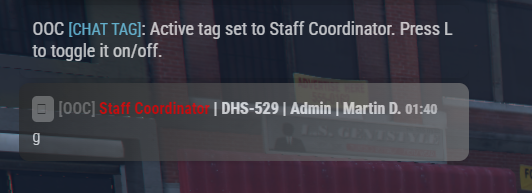
Kruiger HUD Combined Kruiger HUD Combined is the complete Kruiger Labs FiveM server package, combining all five Kruiger systems into one integrated purchase. Instead of purchasing each resource separately, Combined gives your community the complete ecosystem with the systems configured to work alongside each other. Everything Included Your purchase includes: • Kruiger HUD • Kruiger Headtags • Kruiger Priority • Kruiger Duty • Kruiger Chat • Integrated Headtag/Gangtag HUD display • Integrated Headtag settings • Department and organization support • Configurable duty locations • ACE-controlled permissions • Priority management • Postal navigation • Vehicle HUD • Seatbelt functionality • Custom FiveM chat • Roleplay chat commands • Staff chat functionality • Chat tags and settings • Optional Discord logging • Customer-editable configuration • Cfx Asset Escrow protection You do not need to purchase any of the Kruiger Standalone packages when purchasing Kruiger HUD Combined. Kruiger HUD Kruiger HUD provides the primary player, vehicle, and navigation interface. The HUD loads automatically when a player joins the server. HUD Settings Use: /hud to open the HUD settings. Players can configure supported display preferences directly in-game. Vehicle HUD When a player enters a supported vehicle, the vehicle HUD automatically activates. Supported information includes features such as: • Vehicle speed • Speed information • Speed limits • Navigation information • Vehicle indicators • Seatbelt status Leaving the vehicle automatically returns the HUD to its normal state. Speed Limit Display Use: /togglespeed to toggle the supported speed-limit display. Seatbelt The Combined package includes Kruiger HUD's vehicle seatbelt functionality. Seatbelt information is integrated with the vehicle HUD. Postal Navigation Use: /postal [postal code] Example: /postal 301 The system locates the configured postal and provides navigation to that location. Recommended Postal Map For the postal numbers displayed on your map to align with Kruiger HUD's postal system, use: Big Daddy Scripts Postal Map https://bigdaddyscripts.com/Products/View/2963/Postal-Map Using another postal map or dataset may result in the displayed postal numbers not corresponding with /postal . The Postal Map is a third-party resource and is not developed, distributed, or owned by Kruiger Labs LLC. Kruiger Headtags Kruiger Headtags provides configurable overhead player identification. It can be used for: • Staff • Police • Sheriff's Offices • State Police • Fire/EMS • Federal Agencies • Departments • Subdivisions • Gangs • Organizations • VIP groups • Developers • Management • Custom server roles Using Headtags Use: /headtag or: /headtags to access the Headtag system. Players only receive access to restricted Headtags they have permission to use. Gang / Department Tags Use: /gangtag to access available Gangtags or Department tags. The system also supports: /gantag as an alternate command. Headtag Settings Use: /headtagsettings to access the integrated Headtag settings. Players can configure supported Headtag display preferences from this interface. Self Headtag Use: /showheadtagself for the supported self-Headtag display functionality. Adding Your Own Headtags Server owners are not limited to the included Headtags . Additional Headtags can be created through the customer-editable Headtags configuration. Step 1 — Open the Headtags Configuration Open the customer-editable configuration included with Kruiger Headtags. Existing Headtag entries can be used as templates. Step 2 — Create the Headtag Copy an existing Headtag entry and modify it for your new role. For example, you could create: Owner Administrator Moderator LSPD BCSO SAHP Fire/EMS FIB VIP or any other role used by your community. Each configured tag should have its own unique identifier. Step 3 — Configure Permissions Headtags use FiveM ACE permissions. Headtag permissions use: headtag.kruiger.* Gang/Department tags use: gangtag.kruiger.* Grant the corresponding permission to the appropriate FiveM principal/group. This means simply creating a restricted tag does not automatically give everyone access to it. Step 4 — Restart Save your configuration and restart Kruiger Headtags or restart the server. Authorized players can then access the new Headtag through /headtag or /headtags . Adding Gang / Department Tags Additional Gangtags and Department tags can also be added. Server owners can: Open the Headtags configuration. Locate the Gangtag/Department tag configuration. Use an existing entry as a template. Create a unique entry for the new department or organization. Configure its display information. Assign its gangtag.kruiger.* ACE permission. Grant that permission to the correct group. Restart the resource. The newly configured tag can then be accessed by authorized players through: /gangtag Headtag + HUD Integration Headtags integrate directly with Kruiger HUD in the Combined package. The player's supported Headtag/Gangtag status can be communicated to the HUD and displayed through its Tag Status interface. Supported presentation options include settings such as: • Position • Scale • Opacity • Background • Border This creates a unified experience rather than operating the HUD and Headtags as unrelated scripts. Kruiger Duty Kruiger Duty provides department and staff duty management. It can be used for law enforcement, emergency services, federal agencies, staff teams, organizations, and other server-defined departments. Going On/Off Duty Players can use: /duty to access the duty system where permitted. Servers can also configure physical duty locations. When a player approaches a configured duty point, they can interact using: E to access the duty interface. Players can then change between supported: On Duty and: Off Duty states. Creating Duty Locations Duty locations are configurable by the server owner. This means your community can place duty access where it actually makes sense for your server. Examples include: • Police stations • Sheriff's offices • Highway patrol stations • Fire stations • Hospitals • Federal buildings • Staff areas • Organization headquarters The customer-editable duty configuration/data controls the locations used by your server. Existing configured duty points can be used as examples when adding additional locations. Adding More Departments You are not limited to the departments included by default. Kruiger Duty is designed so server owners can configure additional departments for their community. Examples could include: • LSPD • BCSO • SAHP • Fire/EMS • FIB • DHS • IAA • Corrections • Dispatch • Server Staff • Custom organizations Adding a Department 1. Open the Duty Configuration Open the customer-editable Kruiger Duty configuration. Locate the configured departments. 2. Use an Existing Department as a Template Existing department entries show the structure expected by the system. Create another entry following that structure and give the department its own unique identifier. 3. Configure Department Access Configure the appropriate access/permissions for the new department. Only players who should have access to that department should receive its required permissions. 4. Add Duty Locations Configure one or more duty points for the department where required. For example, a Sheriff's Office could have duty points at multiple stations while Fire/EMS could have them at multiple firehouses. 5. Save and Restart Save the configuration and restart Kruiger Duty or your server. The new department can then use the configured Duty system. Duty Setup Authorized administrators also have access to: /dutysetup This functionality is intended for authorized server management rather than normal players. Servers should restrict administrative Duty functionality through the included permission system. Duty + Headtags Integration Because both resources are included in Combined, Kruiger Duty can work alongside Kruiger Headtags. This allows duty information and supported Headtag functionality to be used as part of the same ecosystem. For example, your departments can have their own configured Headtags/Gangtags while also using Kruiger Duty for On/Off Duty management. Kruiger Priority Kruiger Priority provides server-wide roleplay priority management. Use: /priority to access the Priority Management interface. Authorized users can manage the server's current Priority status. Supported states can include: • Priority Available • Priority Active • Priority On Hold • Priority Cooldown Changes are synchronized so the appropriate Priority information updates for players. Priority Permissions Priority management is permission controlled. The permission namespace uses: kruiger.priority.* Server owners can decide which staff members or groups are authorized to control Priority. Regular players should not be given Priority management permissions unless desired. Kruiger Chat Kruiger Chat replaces the standard chat experience with a custom FiveM chat system built for roleplay and community servers. It includes roleplay messaging, advertisements, social communication, player settings, Chat Tags, staff functionality, chat management, and optional Discord logging. Roleplay Chat Commands /me Use: /me [message] to describe an action performed by your character. Example: /me reaches into their pocket and removes their ID. /gme Use: /gme [message] for the supported global ME-style functionality. /do Use: /do [message] to describe a scene, condition, or roleplay detail. Example: /do The front windshield would be shattered. Communication Commands /social Use: /social for the supported social messaging functionality. /sms Use: /sms for the supported SMS-style messaging functionality. /ad Use: /ad for the configured advertisement system. Server owners can configure the supported behavior and access for these systems. Chat Settings Use: /chatsettings to access player Chat settings. Players can customize supported Chat preferences through this interface. Chat Tags Use: /chattag to access the Chat Tag functionality. Chat Tags can be configured and permission-controlled by the server. This can be used for identifiers such as: • Owner • Staff • Developer • Department • VIP • Supporter • Custom community roles Chat Visibility Players can use: L for the supported Chat visibility/display functionality. This gives players quick access to the Chat display controls without entering another command. Chat History Use: F1 for the supported Chat history scrolling functionality. This makes it easier to review previous messages when Chat is moving quickly. Staff Chat & Management Kruiger Chat includes functionality intended for authorized staff members. Supported functionality includes: • Staff messaging • Chat management • Chat locking • Permission-controlled staff features Staff functionality should be restricted to your authorized staff groups. Discord Logging Kruiger Chat supports optional Discord webhook logging. Discord logging is not required . If enabled, the server owner supplies their own Discord webhook through the customer-editable configuration. Kruiger Labs does not require customers to send their server's Chat logs to a Kruiger Labs webhook. How the Complete Package Works Together HUD Provides the primary player, vehicle, navigation, speed, seatbelt, and settings interface. Headtags Provides overhead player identification and permission-controlled Headtags/Gangtags. Duty Handles On/Off Duty status and configurable department duty locations. Priority Provides server-wide roleplay Priority management. Chat Provides the server's roleplay-focused Chat and communication system. Combined Integration The systems are packaged together so communities can build their server around one Kruiger ecosystem rather than purchasing and configuring unrelated resources from multiple products. Main Player Commands /hud — HUD settings /postal [code] — Postal navigation /togglespeed — Toggle supported speed-limit display /headtag — Access Headtags /headtags — Access Headtags /gangtag — Access Gang/Department tags /gantag — Alternate Gangtag command /headtagsettings — Headtag settings /showheadtagself — Supported self-Headtag functionality /duty — Duty system /priority — Priority management /me — Character action /gme — Global ME-style functionality /do — Roleplay scene/detail /social — Social functionality /sms — SMS functionality /ad — Advertisement functionality /chatsettings — Chat settings /chattag — Chat Tags Additional Controls E — Interact with configured Duty locations L — Supported Chat visibility functionality F1 — Supported Chat history functionality Administrative functionality such as /dutysetup should only be available to authorized users. Installation 1. Install the Package Extract the included resources into your FiveM resources directory. Keep the supplied resource structure intact. 2. Configure HUD Configure the customer-editable HUD options. 3. Configure Headtags Configure your Headtags, Gangtags, Department tags, and corresponding ACE permissions. 4. Configure Departments Configure Kruiger Duty with the departments and organizations used by your server. 5. Configure Duty Locations Add the duty points needed for your departments. 6. Configure Priority Configure the Priority system and determine which groups can manage it. 7. Configure Chat Configure your Chat options, permissions, Chat Tags, and optional Discord logging. 8. Configure ACE Permissions Review all supplied permission examples and grant access only to the appropriate FiveM principals/groups. 9. Install Postal Map If you want matching visible postals, install the recommended Big Daddy Scripts Postal Map. 10. Add Resources to server.cfg Add the included resources using the appropriate ensure entries supplied with the package. 11. Restart & Test Restart your server and verify: • HUD loads • Vehicle HUD works • Seatbelt functionality works • Postal navigation works • Headtags work • Custom Headtag permissions work • Gang/Department tags work • Duty points work • Departments can clock in/out • Priority works • Priority permissions work • Chat loads • Roleplay Chat commands work • Chat Tags work • Staff Chat permissions work Customer Customization Combined is designed to remain configurable even though supported core implementation files are protected through Cfx Asset Escrow. Server owners can configure supported customer-facing options including: • HUD settings • Headtags • Gang/Department tags • Headtag permissions • Departments • Duty locations • Duty permissions • Priority permissions • Chat settings • Chat Tags • Optional Discord logging You are not restricted to only the departments, Headtags, or organizations included by default. Framework Requirements Kruiger HUD Combined does not require: • ESX • QBCore • Qbox No external database is required for normal operation of the included systems. Cfx Asset Escrow Kruiger HUD Combined is distributed using Cfx Asset Escrow . Supported core implementation files are protected while designated customer-editable configuration remains available for server customization. A valid Cfx entitlement is required to run the protected resource. Standalone vs Combined Standalone Packages Designed for customers who only need one particular Kruiger system. HUD, Priority, Headtags, Duty, and Chat can be purchased separately. Kruiger HUD Combined The complete package containing: Kruiger HUD + Kruiger Headtags + Kruiger Priority + Kruiger Duty + Kruiger Chat One purchase gives you the entire current Kruiger FiveM resource ecosystem. Requirements • Working FiveM server • Cfx.re account/entitlement • Correct ACE configuration for restricted functionality • Recommended postal map if matching visible postals are desired Version Kruiger HUD Combined v1.0.0 Includes: HUD v1.0.0 Headtags v1.0.0 Priority v1.0.0 Duty v1.0.0 Chat v1.0.0 Support Need assistance installing or configuring the package? Join the Kruiger Labs Discord: https://discord.gg/DbnPHsU9jg When requesting technical support, please provide relevant console errors and explain what was happening when the issue occurred. Developed by Kruiger Labs LLC
Discord systems
Kruiger Labs bots discovered automatically from GitHub. Public bots are shown first, followed by private bots.

All-in-one Discord bot for music, moderation, verification, tickets, profiles, and community management.

Internal Affairs Discord bot for user lookups, blacklist management, authorization, and administrative operations.

Kruiger Sentinel is Kruiger Labs’ network-wide enforcement and case management system. It manages bans, blacklists, evidence, staff reviews, audit logs, and enforcement synchronization across authorized Kruiger Labs communities while maintaining a centralized record of every case.

Discord DM relay bot for private user-to-staff communication and organized support conversations.

Global Discord administration bot with multi-server moderation and permission-based staff controls.
Vehicle design
Live gallery sourced from the liveries folder in TazElite/Images.


